Pen Adapter for Cricut: Benefits and Tips for Crafters

Pen adapters for Cricut are accessories that precisely connect various pens to Cricut plotters, making drawing and writing projects possible. The benefit of pen adapters for Cricut is that you don't have to rely on expensive branded pens, but can use standard pens like Stabilo 88, Stabilo 68, or other universal markers directly in your machine. Models such as Cricut Explore 4, Explore 5, Joy, and Joy 2 have different requirements for adapters and holders. Once understood, this saves money, expands creative possibilities, and allows you to get significantly more out of your plotter.
Which Cricut models require pen adapters?
The requirements for pen adapters differ significantly depending on the Cricut model. For the Cricut Explore 4 and older Explore models, the pen sits in Clamp A, where an accessory adapter for universal pens is necessary. Pen adapters are usually included in the universal pen set and do not incur additional costs. This is a real advantage for beginners.
The Cricut Explore 5 uses separate pen holders, which differ from the adapters of older models. Lack of compatibility can lead to malfunctions, so it's worth checking before buying. For the Cricut Joy and Joy 2, different dimensions apply again, as the machines are more compactly built. Here you need specially adapted adapters for smaller pen diameters.
The following table gives you a quick overview:
| Model | Adapter Type | Special Feature |
|---|---|---|
| Cricut Explore 4 | Accessory adapter in Clamp A | Universal pens compatible |
| Cricut Explore 5 | Separate pen holder | Own holding system |
| Cricut Joy | Compact adapter | Smaller pen diameters |
| Cricut Joy 2 | Compact adapter | Like Joy, updated model |
| Cricut Maker | Clamp A with adapter | Broad compatibility |
For older models like the Cricut Explore One, the adapter must be manually exchanged with the blade housing. Newer models have separate clamps for pen and blade, which significantly simplifies the change. So, those upgrading to a newer model directly benefit from this improvement.
How does the pen adapter work technically?
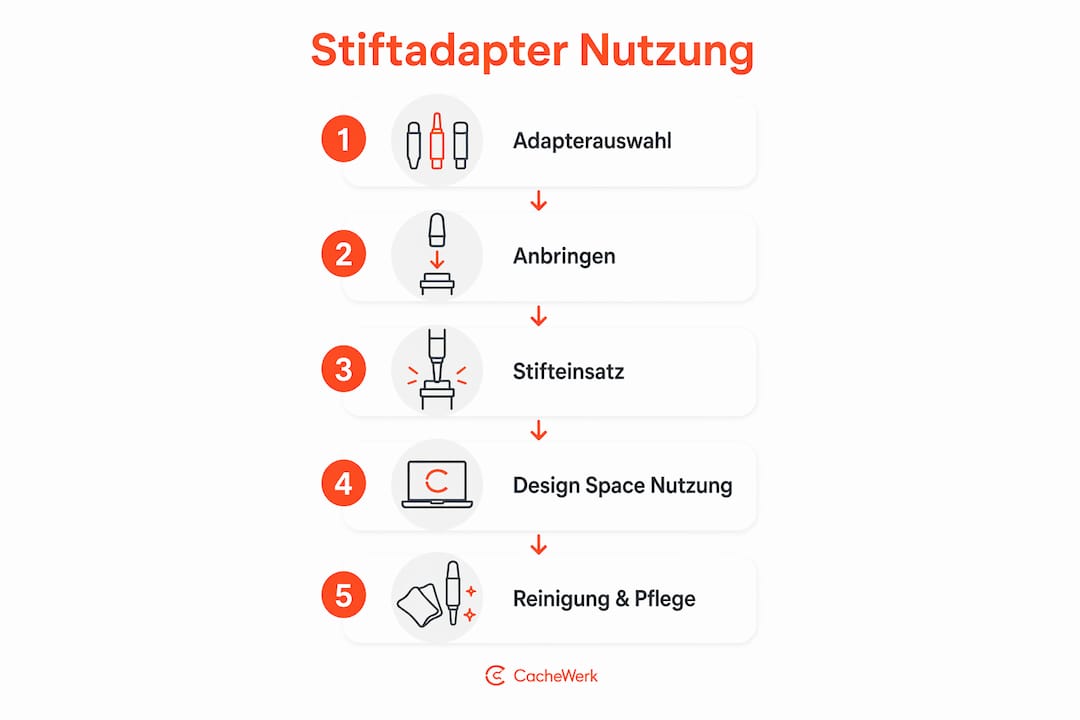
The accessory adapter sits in Clamp A of your Cricut machine and holds the pen in the exactly correct position. The adapter audibly clicks into place when inserted correctly, ensuring precise pen guidance. Without this click, the pen can slip, and your drawing will be inaccurate. This sounds simple but is the decisive factor for clean results.
Here's how to insert and remove the adapter correctly:
- Insert adapter: Place a finger under Clamp A for stability. Push the adapter into the clamp from above until you feel an audible click.
- Insert pen: Insert the pen into the adapter from above. Make sure it sits straight and doesn't wobble.
- Remove adapter: Press the clamp down and place your thumb under the adapter. The adapter will then pop out in a controlled manner.
- Clean: Wipe the adapter briefly after use to prevent ink residue from affecting the next use.
When removing the adapter, correct handling is important to prevent damage to both the adapter and the clamp. The same procedure applies when reinserting for a stable and secure fit.
Pro Tip: Only remove the adapter if you are using permanent markers with a 2.5 mm diameter or special blades. Standard pens do not require this, and you save unnecessary steps.
What advantages do pen adapters offer for creative projects?
Pen adapters transform your Cricut plotter from a pure cutting machine into a versatile drawing tool. You can use them to create greeting cards with a handwritten look, label homemade jams, or draw complex illustrations on paper, cardstock, and even fabric. The machine takes over the precision that would be difficult to achieve by hand.
The main advantages at a glance:
- Pen variety: You can use felt-tip pens, markers, gel pens, and permanent markers from various manufacturers, not just expensive Cricut original pens.
- Precision: The machine guides the pen with millimeter accuracy, which makes all the difference for small lettering and delicate lines.
- Time-saving: Complex patterns that would take hours by hand are completed by the plotter in minutes.
- Repeatability: The same design can be reproduced exactly the same any number of times, ideal for series productions.
- Material variety: Paper, cardboard, leather, fabric, and even wood can be worked with the right pens and adapters.
The exact selection of the appropriate pen is crucial to achieve optimal drawing quality on different materials. A felt-tip pen that works perfectly on paper can bleed on cardboard or not release enough color on fabric.
For creative crafters who also integrate stamp-based techniques into their projects, pen adapters open up entirely new combination possibilities. For example, you can combine a stamped background with precise Cricut drawings to create unique cards or decorations.
Pro Tip: Always test new pen combinations on a scrap piece of material first. Different pen tips react differently to material surfaces, and a quick test saves you expensive main material.
How to use pen adapters effectively in Cricut Design Space?
Cricut Design Space is the software you use for all projects with your machine. For drawing with pen adapters, you must specifically activate the drawing option there instead of using the cutting function. The drawing function requires activating the drawing option, selecting the pen type, and customizing the design. This step is often overlooked by beginners, leading to unexpected results.
Here's how to proceed in practice:
- Open your design in Cricut Design Space and select the layer to be drawn.
- Change the line type from "Cut" to "Draw" in the properties panel.
- Select the appropriate pen type from the drop-down menu so that the software uses the correct parameters.
- Adjust font size and line thickness so that delicate details remain readable even in small formats.
- Secure your material flat and stable on the cutting mat so that the pen lies evenly.
Delicate lines or small lettering can become blurry, so you should check your design on the screen beforehand. Zoom in on the details and pay attention to excessively narrow spacing between lines. Test runs on scrap material help to avoid errors and check the settings before starting your actual project.
Pro Tip: For lettering in Cricut Design Space, preferably use single-line fonts. These are drawn as a single line instead of a filled area, which saves ink consumption and delivers clean results.
Which pen adapters and pens are recommended?
The market offers various adapters for different pen types and Cricut models. Universal adapters from Craverland are included in most universal pen sets and allow the use of different pens. They offer flexibility and are very popular with creative crafters because they can be used without additional costs.
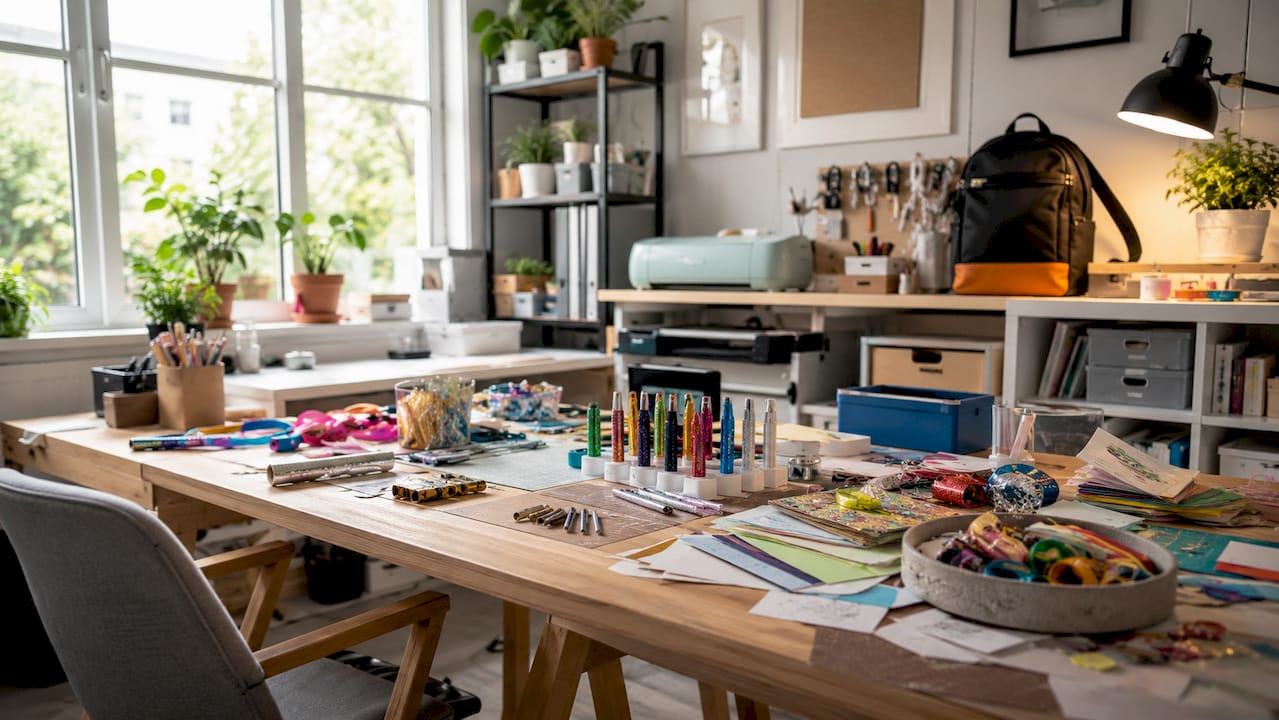
For Stabilo pens, there are specially adapted adapters available for Cricut Maker, Air, and Explorer models, as well as separately for Cricut Joy plotters. The Stabilo adapters for Cricut Maker fit the Stabilo 88 and Stabilo 68 series and ensure a secure, wobble-free fit. For the Joy plotter, there are suitable Stabilo adapters for Cricut Joy, which are adapted to the more compact design.
| Adapter | Compatible Models | Pen Types | Special Feature |
|---|---|---|---|
| Craverland Universal | Explore 4, Maker | Various universal pens | Often included in sets |
| Stabilo Adapter (Maker) | Maker, Air, Explorer | Stabilo 88, Stabilo 68 | Precise fit |
| Stabilo Adapter (Joy) | Joy, Joy 2 | Stabilo 88, Stabilo 68 | Compact format |
| Cricut Original Adapter | All current models | Cricut branded pens | Highest compatibility |
When choosing pens, remember: felt-tip pens like Stabilo 88 deliver very clean lines on paper and cardstock. Markers with wider tips are suitable for areas and calligraphy. Compatibility between pen, adapter, and machine model is a common source of error for beginners. Professionals therefore recommend checking the exact pen diameter measurements before purchasing and comparing them with the adapter specifications.
Those interested in embossing techniques and stamping can also wonderfully combine pen adapters with embossing techniques. The plotter draws the outlines, and you then emboss the details by hand. This results in a professional look that would not be achievable with pure cutting.
Key Takeaways
The biggest benefit of pen adapters for Cricut lies in pen variety: with the right adapter, you can precisely use inexpensive brand pens like Stabilo 88 with your plotter, without being dependent on expensive original pens.
| Point | Details |
|---|---|
| Check model compatibility | Explore 4, Joy, and Maker require different adapters; check before purchasing. |
| Insert adapter correctly | Adapter must click into place, otherwise drawing precision will suffer significantly. |
| Activate drawing function | In Cricut Design Space, set line type to "Draw," not "Cut." |
| Perform a test run | Before each new project, test on scrap material to avoid errors and material waste. |
| Match pen diameter | Pen dimensions must match adapter specifications, otherwise malfunctions will occur. |
My experiences with pen adapters and Cricut
Over the past few years, I've worked with various adapters and Cricut models, and the most common mistake I observe is this: people buy a universal adapter, put any pen into it, and then wonder about messy lines. The problem is almost never with the adapter itself, but with the wrong pen choice for the respective material.
What really surprised me: The quality of inexpensive Stabilo adapters is absolutely sufficient for most everyday projects. You don't need expensive special solutions if you're designing cards, labeling stickers, or drawing simple illustrations. Cricut original pens are nice, but the price difference to Stabilo 88 with a suitable adapter is significant.
One point that many underestimate: The fixation of the material on the cutting mat is just as important as the adapter itself. Slightly wavy paper or a weakening mat leads to uneven pressure and thus to messy lines. I recommend cleaning the mat regularly and replacing it when its adhesive strength diminishes.
For DIY enthusiasts who are just starting out, my clear advice is: Start with a Stabilo adapter and a set of Stabilo 88 pens. This combination is inexpensive, reliable, and covers 90 percent of all typical crafting projects. More complex adapters and special pens come later, when you know what you really need.
— Benedikt
Creative accessories for your next projects at Cachewerk
In addition to geocaching accessories, Cachewerk also offers practical materials for creative craft projects. If you want to use your plotter for more than just cutting, Cachewerk has suitable accessories for individual DIY ideas.
For all those who want to take their creative projects outdoors, it's worth taking a look at the geocaching equipment at Cachewerk. There you will find well-thought-out products for outdoor adventures that can be wonderfully combined with self-designed Cricut designs. Personalized labels, self-inscribed logbooks, or individually designed trackables become real eye-catchers with a plotter and the right pen adapters. Take a look and get inspired!
FAQ
What is a pen adapter for Cricut?
A pen adapter for Cricut is an accessory that makes universal pens compatible with the plotter's Clamp A. It ensures the correct fit and precise guidance of the pen during the drawing process.
Which adapter fits Cricut Joy?
For Cricut Joy and Joy 2, specially adapted compact adapters are required because the machines are smaller than Explore or Maker models. Stabilo adapters for Cricut Joy fit the Stabilo 88 and Stabilo 68 series.
Do I always have to remove the adapter when cutting?
No. For standard pens, the adapter remains in the clamp and does not need to be removed. Removing it is only necessary for permanent markers with a 2.5 mm diameter or special blades.
How do I set up the drawing function in Cricut Design Space?
Select the desired layer and change the line type from "Cut" to "Draw". Then select the appropriate pen type from the menu so that the software uses the correct drawing parameters.
Which pens work best with Cricut adapters?
Stabilo 88 and Stabilo 68 deliver very clean results on paper and cardstock and are compatible with most adapters. For special materials like leather or fabric, permanent markers with a suitable adapter are recommended.